

Get ready for Bankline
Overlay

Step 1

Know what you need to get started
Here’s what you’ll need to log in to Bankline for the first time:
- Your activation code: You’ll have this already in the email we sent you.
- Your Customer ID and User ID: Log in details to enter every time you log in. Your administrative user will give you these.
- Your smartcard and card reader: Your administrative user may give you these, or they may be sent to your home or office address.
- Smartcard PIN: The code to activate your smartcard. We’ll post this to the address registered for you in Bankline.
For UK addresses, it takes 7 days for your smartcard and reader to arrive from the point you were set up.
Check out our commonly asked log in questions:

1. Talk to your administrative user
Your administrative user will be reaching out to share your Customer ID and User ID. Why not take the chance to have a quick chat about Bankline?
They’ll know how your organisation uses Bankline and have plenty of advice to share.
Ask them about:
- What role you’ll have and what you’ll be doing in Bankline.
- The security controls that your organisation has in place in Bankline.
- Whether you’ll be needing the Bankline Mobile app.
- If there are any other administrative users (good to know for future reference).
2. Take a quick tour
Check out this short video for an introduction to Bankline and its key features.
To get a feel for how Bankline works, take a look at the dashboard below and explore the key areas of Bankline. Permissions are required to access some of these areas.
Choose an area to learn more:
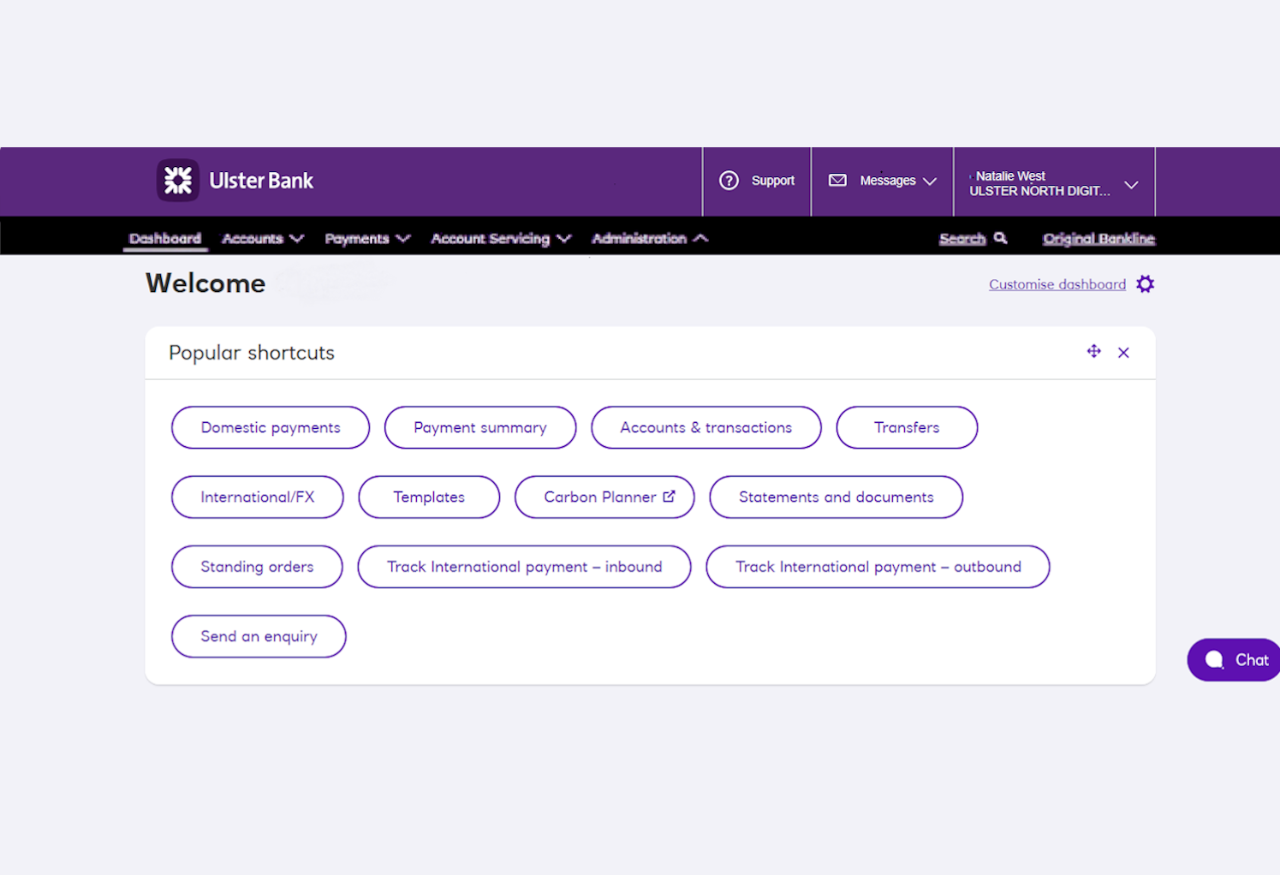
Dashboard
This is the page where you’ll land when you log in. It’s your gateway to all parts of Bankline. And you can make it your own:
Shuffle the order of panels, or remove them altogether.
We’ll let you know here when new features are available.
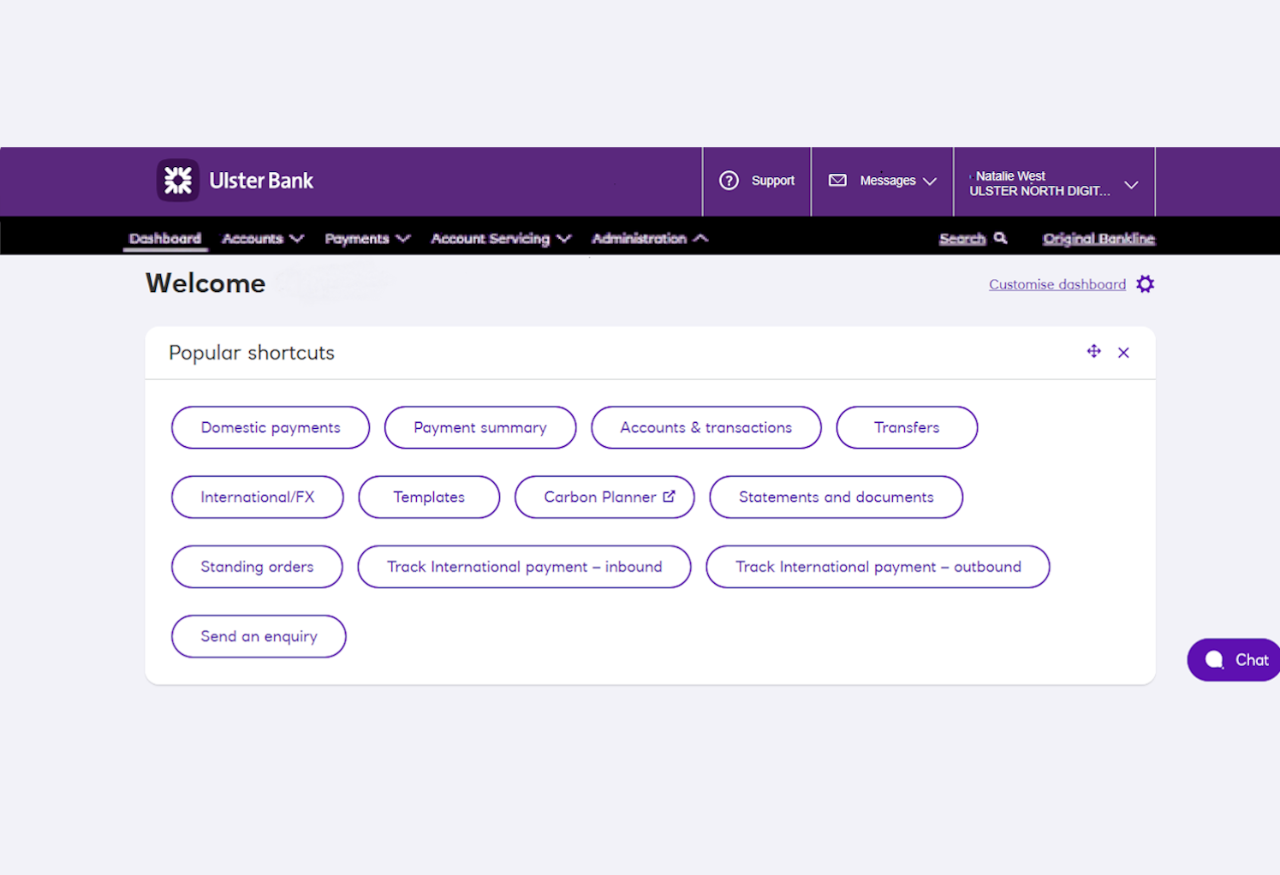
Dashboard
This is the page where you’ll land when you log in. It’s your gateway to all parts of Bankline. And you can make it your own:
Shuffle the order of panels, or remove them altogether.
We’ll let you know here when new features are available.
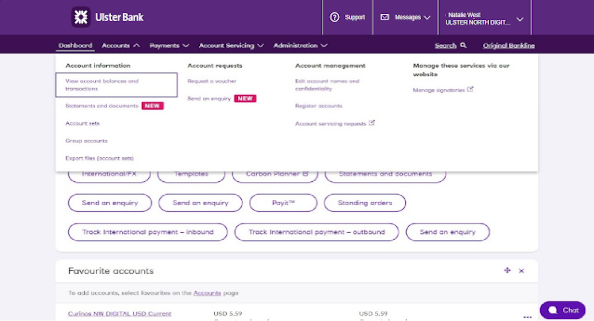
Accounts
This is where you go to view and manage your accounts in Bankline. You’ll be able to:
View account balances and transactions and download statements.
Add and remove accounts.
Group your accounts into account sets – useful for reporting.
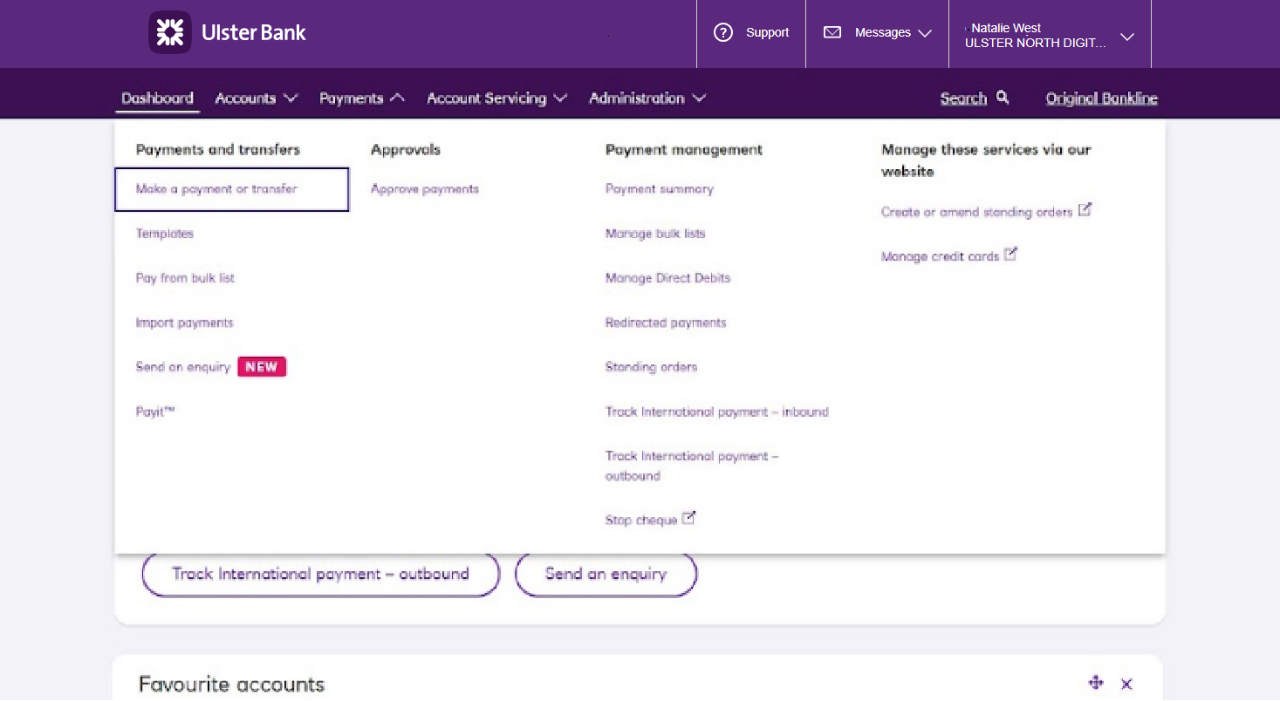
Payments
From here you can make, approve, manage and search payments.
You can make domestic UK payments and international payments. You can also make transfers between your own accounts, including currency accounts if you have them.
You can make single payments, bulk payments, and pay your regular payees from saved templates. More about these options in Step 3.
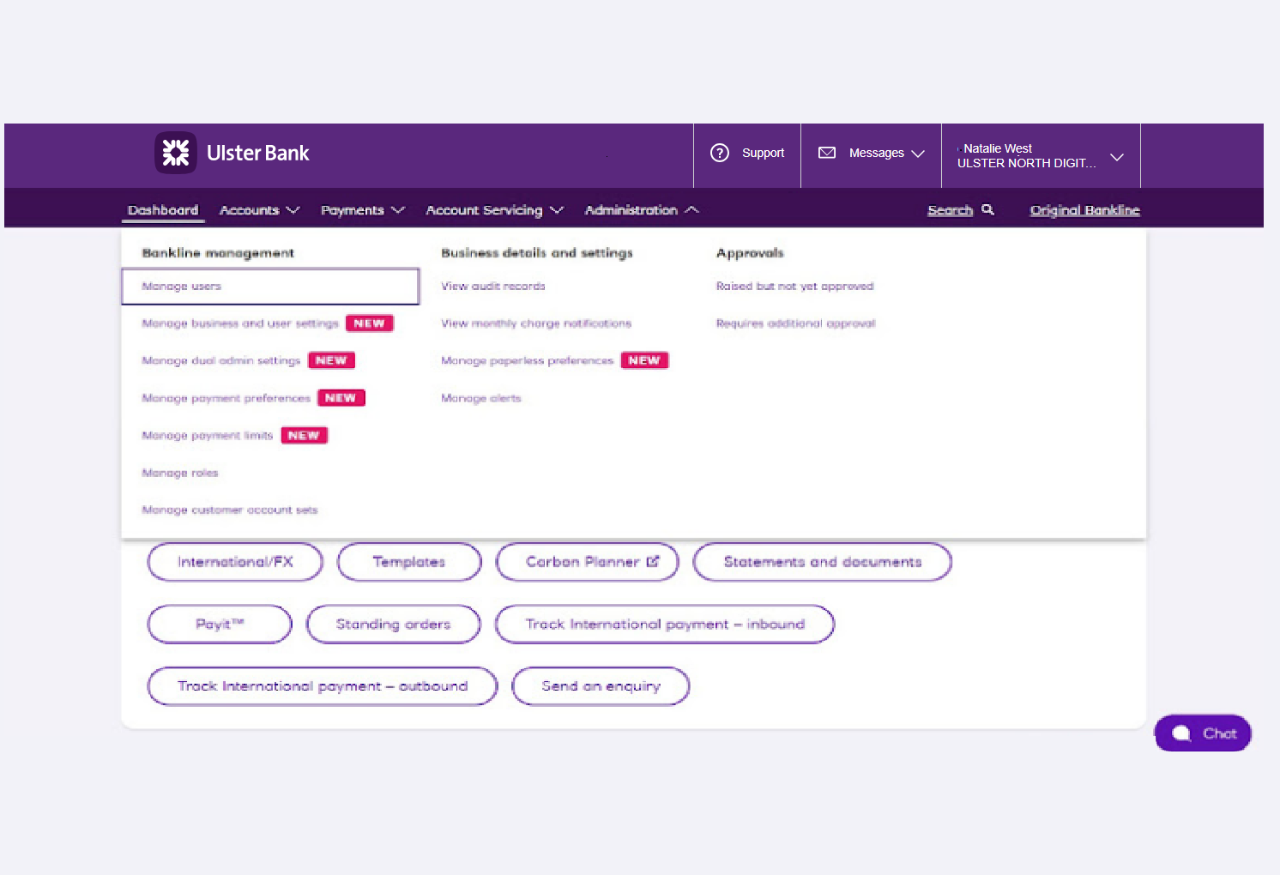
Administration
From this section administrators can add and manage users and make changes to profile-level settings like payment limits.
This is where you’ll come to set up your profile and users. We’ll cover this in Step 2.
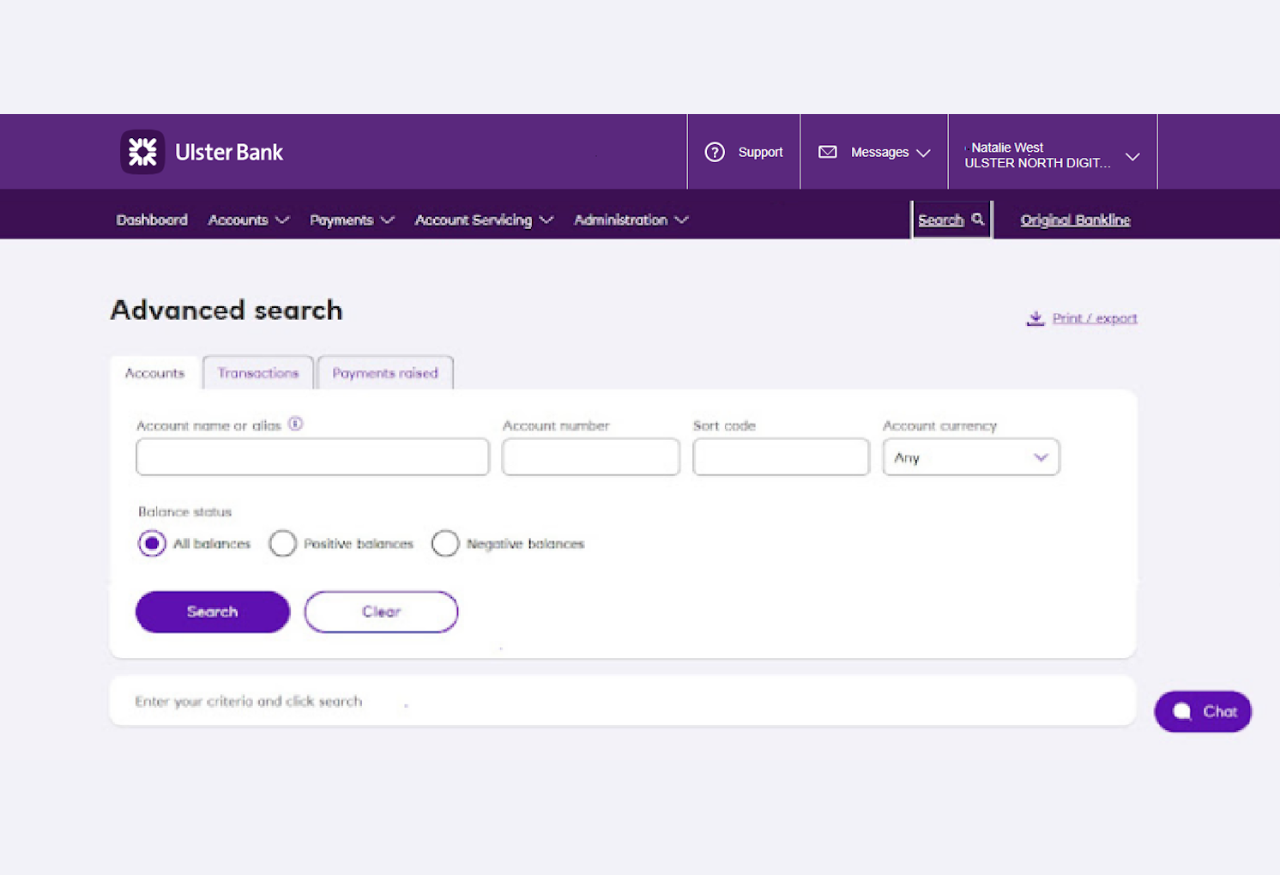
Search
If you want to search for any transactions in Bankline, look no further.
Search transaction across a maximum of 75 accounts, this includes search include completed transactions that go into or come out of your accounts.

Support
Got a question, or not sure how to do something? Just click Support to search our ‘how-to’ articles.
Cora and webchat
Prefer a chat? Click ‘Chat now’ and Cora, your digital assistant, will help with your query and connect you to a webchat adviser if needed.
Cora is online 24/7 and our advisers are available 9 to 5, Monday to Friday.
To get through to an adviser at any point, just type ‘speak to a person’.
Opens in a new window